Connect your Outlook. Offers come in by themselves.
Connect your Microsoft 365 or Outlook mailbox and Margin reads the offers, price lists and answers that reach it, with no forwarding. The messages you write in Margin go out from your own address.
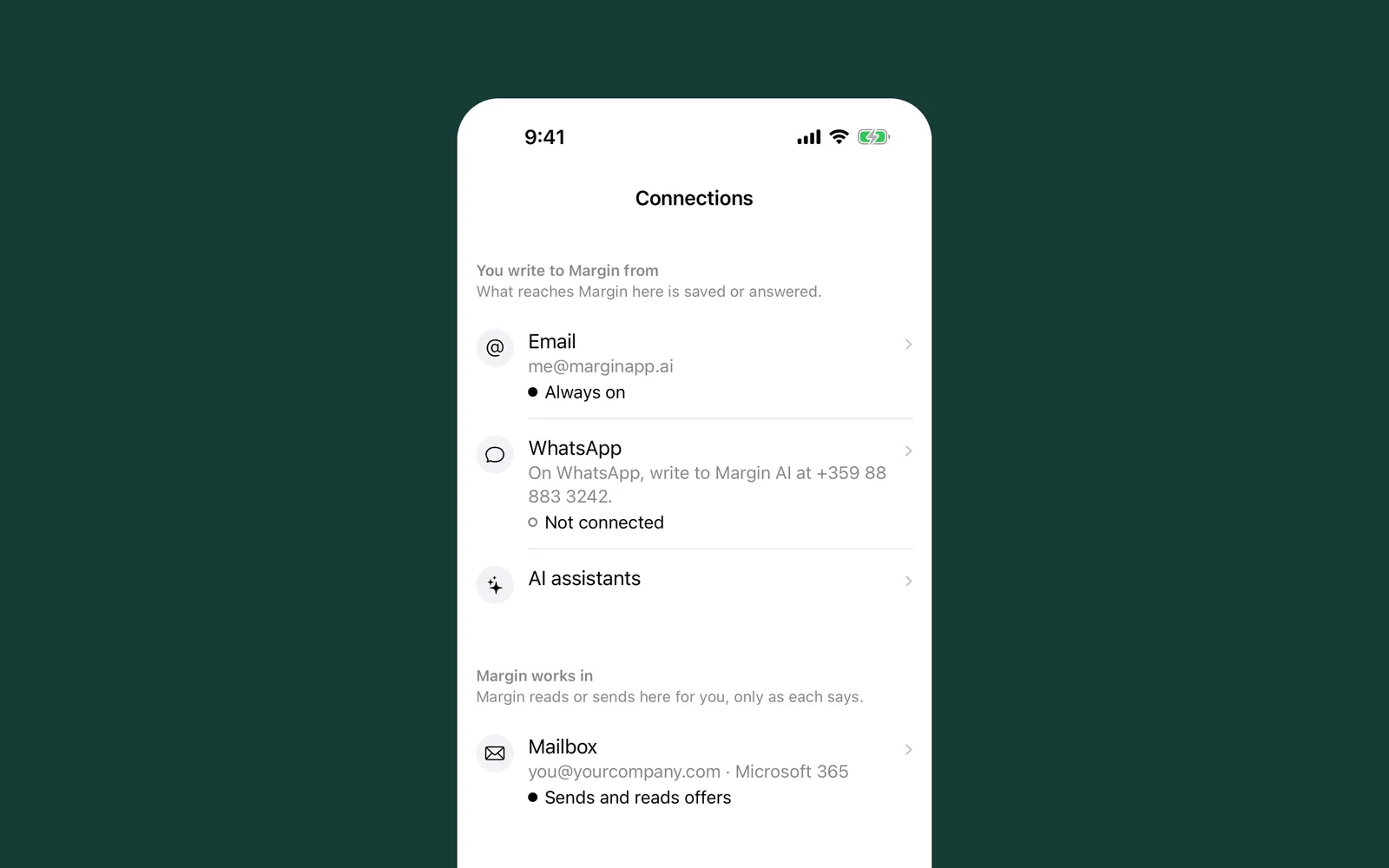
Until now, an offer counted in Margin only once you forwarded it. Now Margin can work in your mailbox itself.
Offers come in by themselves
When a supplier mails you an offer, a price list or an answer, it shows up in Margin as what it is: a deal, new prices or a to-do. You don't forward anything. Margin has no inbox of its own. Outlook stays your mail app, and in Margin you see what each mail became, with the mail one tap away.
It starts with the last four weeks
When you connect, Margin reads back four weeks of mail, so your Offers don't start empty. An offer whose delivery week has already passed goes into your price history, not into your deals.
Replies go out from your address
Write to a buyer or a supplier in Margin and tap Send. It goes from your own address, lands in your Sent folder and sits under their mail in the same thread. You have five seconds to undo. When they answer in that thread, Margin updates the right deal.
Only trade mail
Margin reads offers, price lists and answers from people you trade with. Everything else is left alone and not kept. Nobody at Margin opens a mail from your mailbox unless you report it to us. You sign in with Microsoft, so Margin never sees your password. You can disconnect at any time, and what Margin already saved stays.
If your company uses Microsoft 365
Sending works as soon as you connect. Reading needs your IT to approve Margin once, for everyone at the company. Tap Ask your IT and Margin writes that mail for you. Until they approve, offers you forward still come in as before. Personal Outlook.com and Hotmail accounts need no approval.
Where to find it in Margin
In the Margin app, not in Outlook: Settings › Connections › Add a connection › Microsoft 365 or Outlook. On iPhone, Mac, Android and the web. Gmail is coming: it shows as Soon in Connections.